SIEM Tutorial Project
Project: I setup Azure Sentinel (SIEM) and connect it to a live virtual machine acting as a honey pot. I observed live attacks (RDP Brute Force) from all around the world and used a custom PowerShell script to look up the attackers Geolocation information and plot it on the Azure Sentinel Map
- I created an Azure account
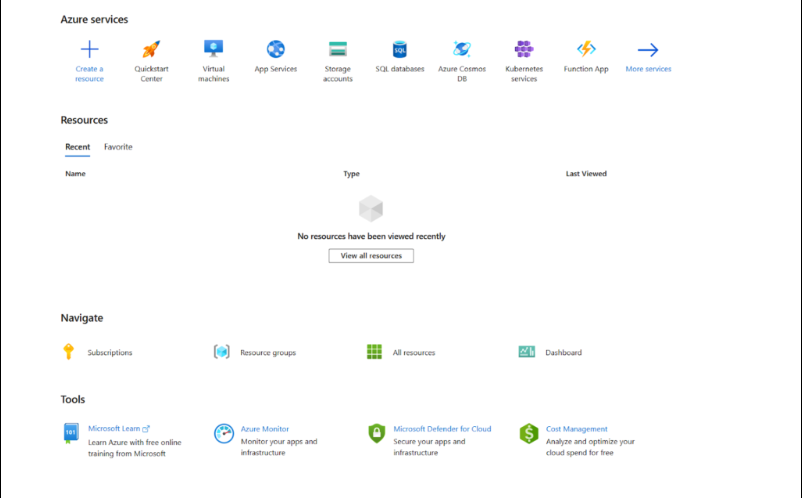
- Began setting up a Windows VM
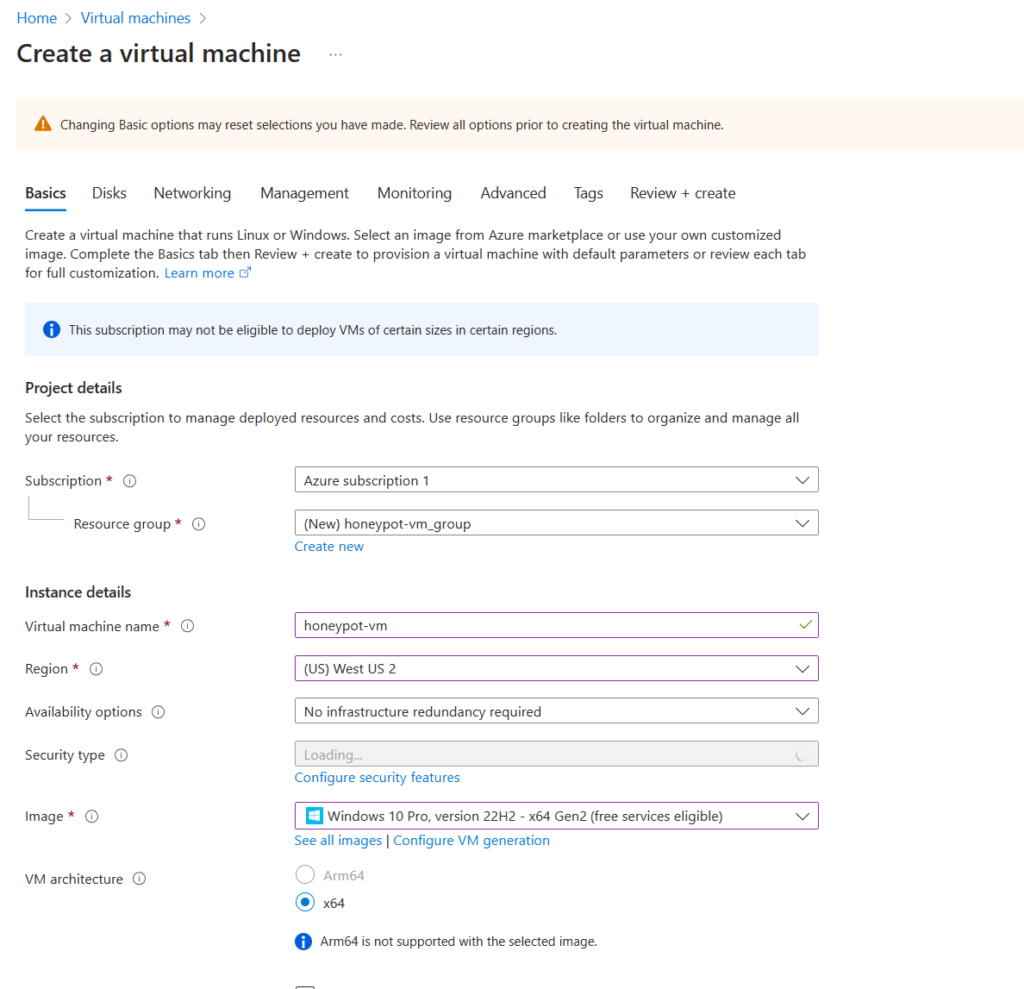
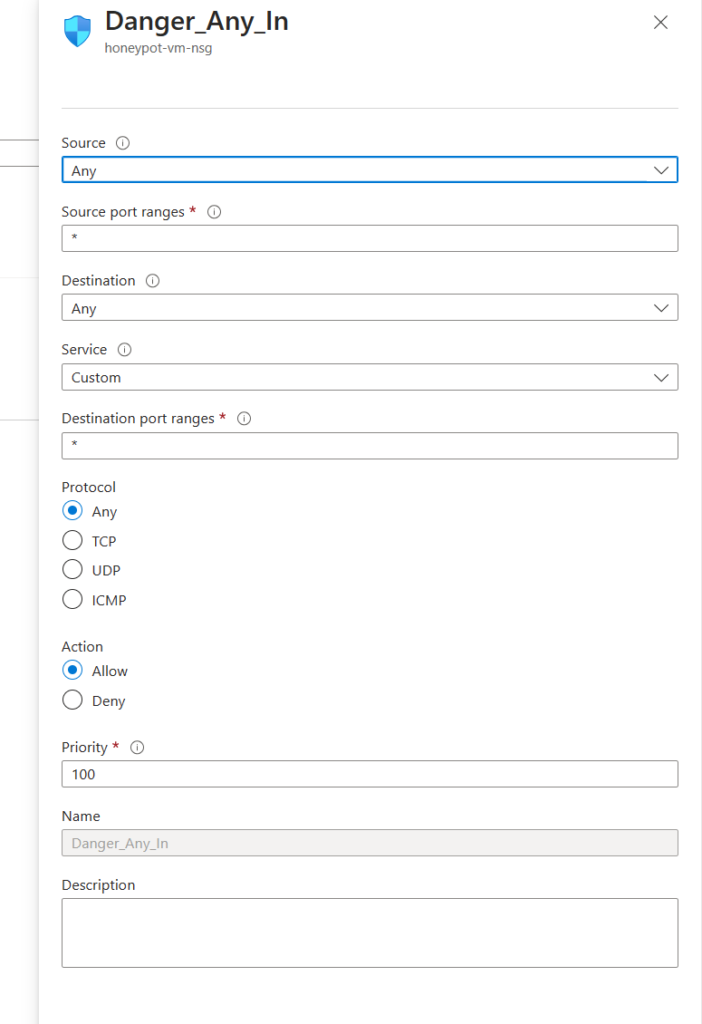
- When creating the Honeypot VM we want to allow all traffic in so I set up the Firewall to not block any incoming traffic
- After creating the VM I want to make a Log Analytics Workspace to create my own custom logs
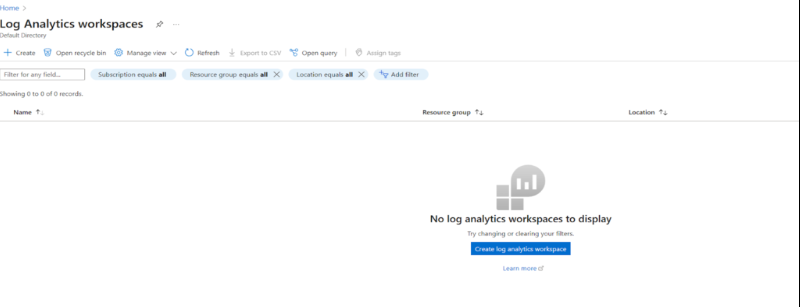
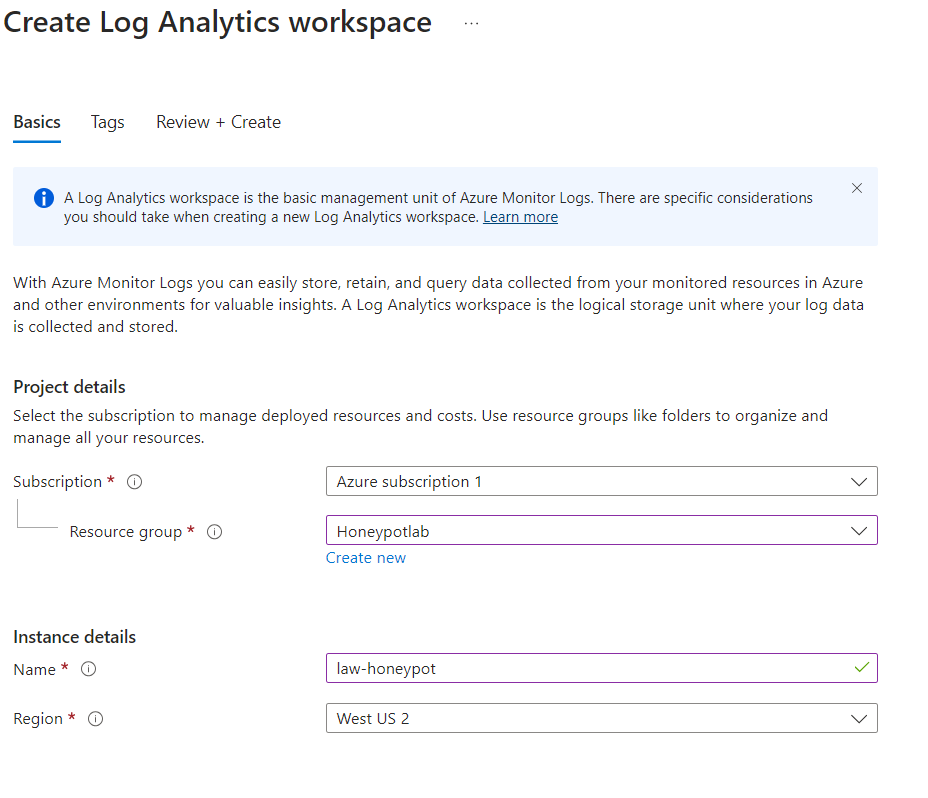
- Turned off SQL servers since I am not using it
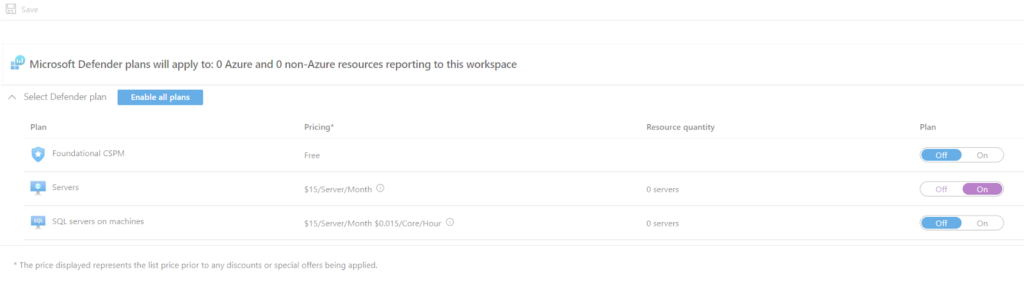
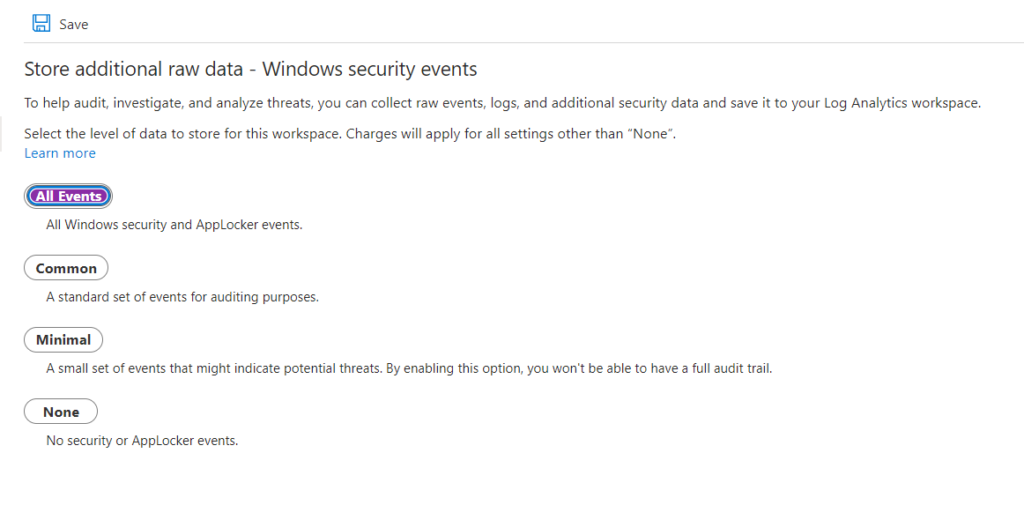
- In Data Collection I was to see and store All Events
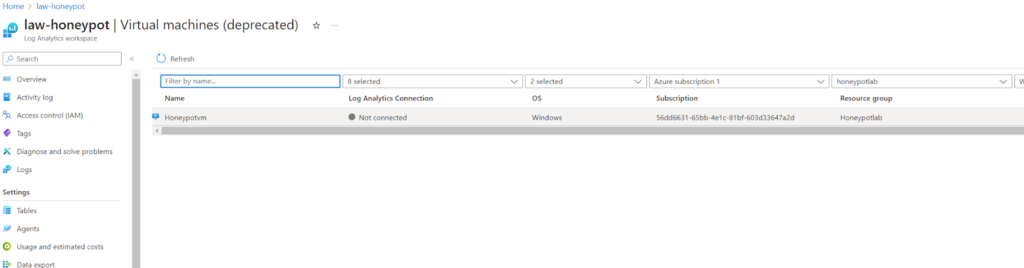
- Next I needed to connect my workspace with all the rules just created to the Virtual Machine created earlier
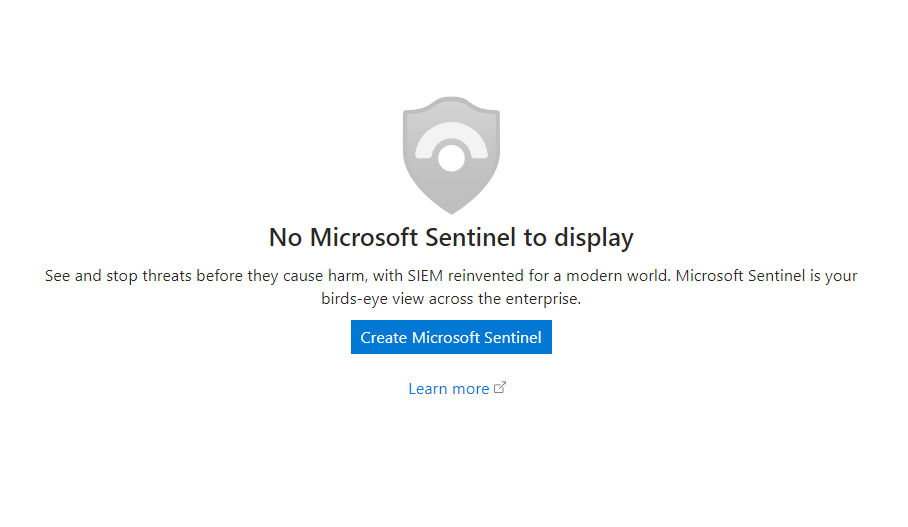
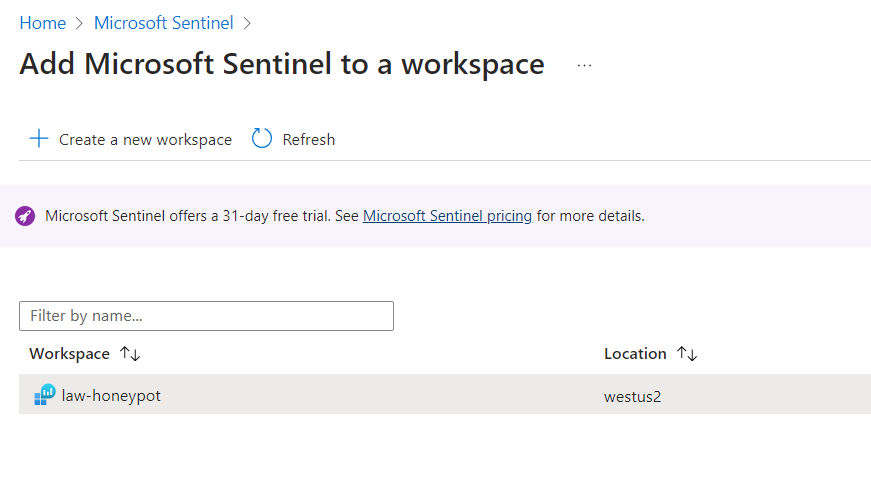
- I now want to create a SIEM so I created a Sentinel SIEM
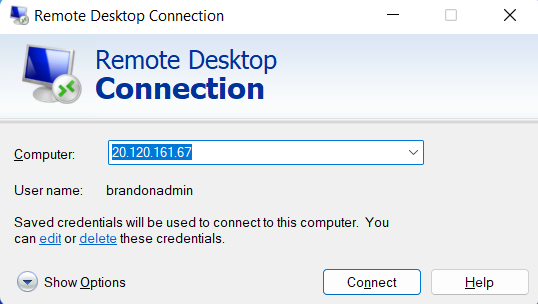
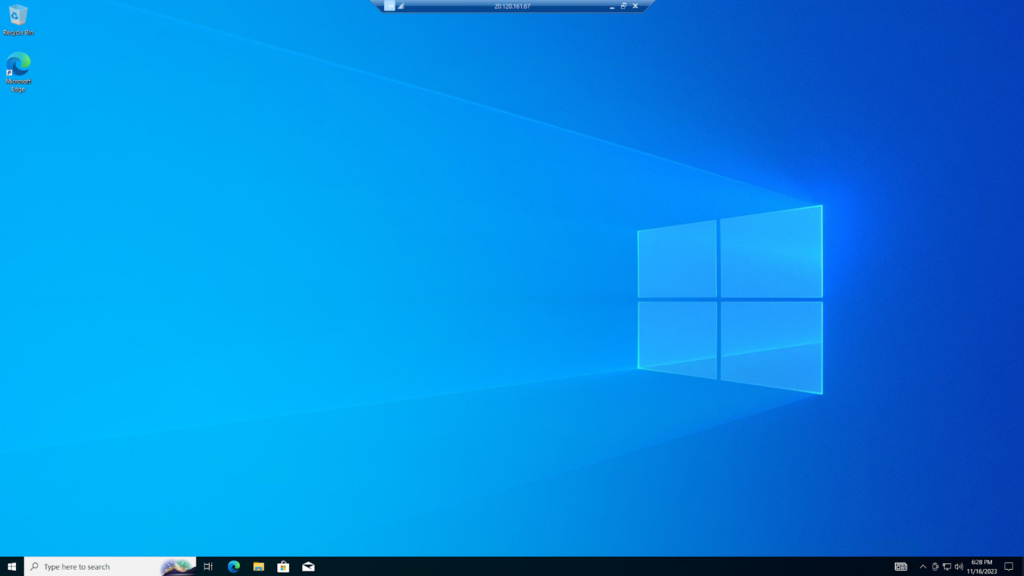
- RDP’d into the VM
- Opened Event Viewer to view events on the VM
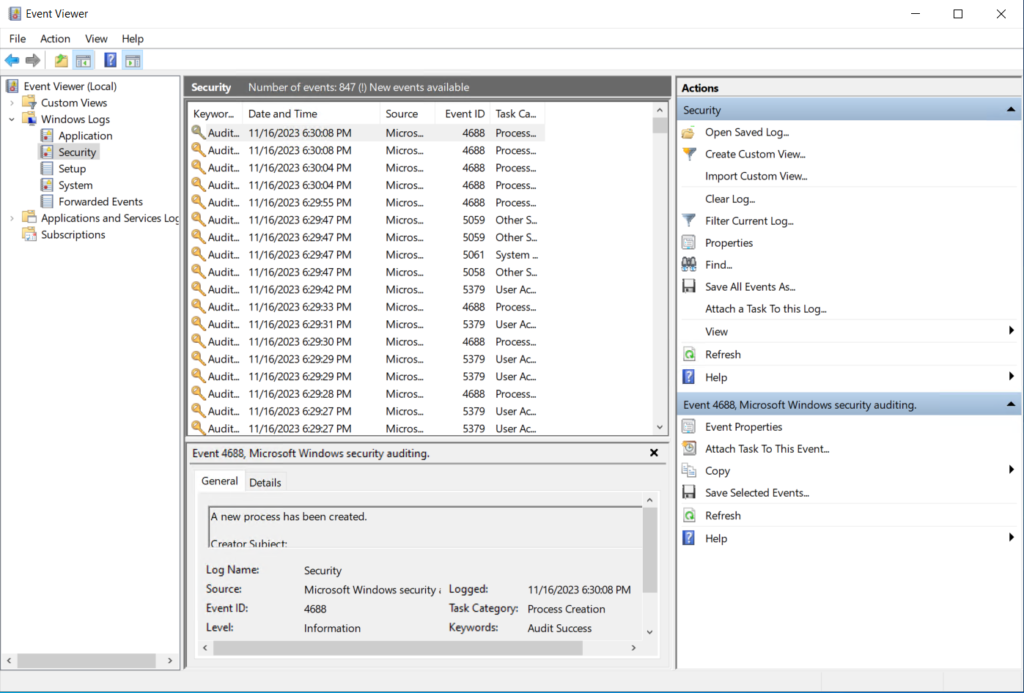
- I can view successful login attempts via event 4624 in the Event Viewer
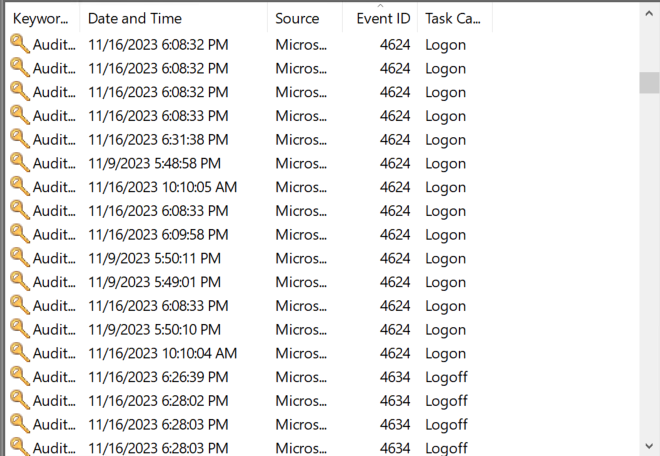
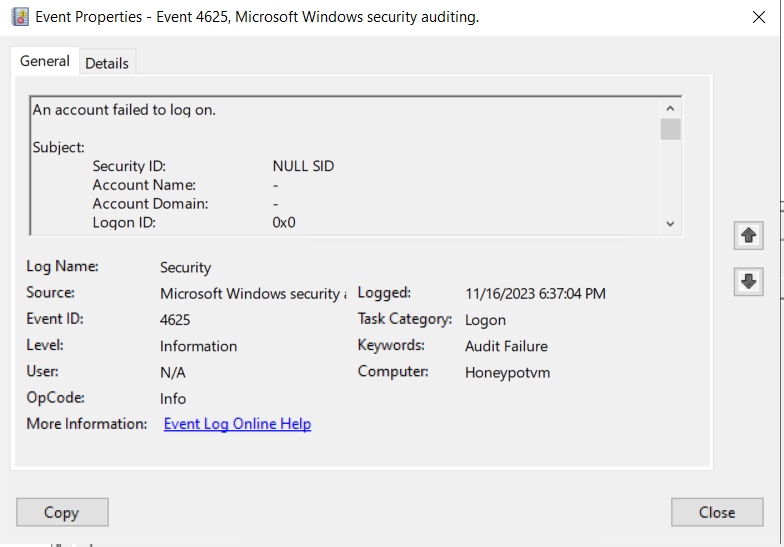
- Similarly, when I try a unsuccessful login attempt, I can view it in the Event viewer as event 4625
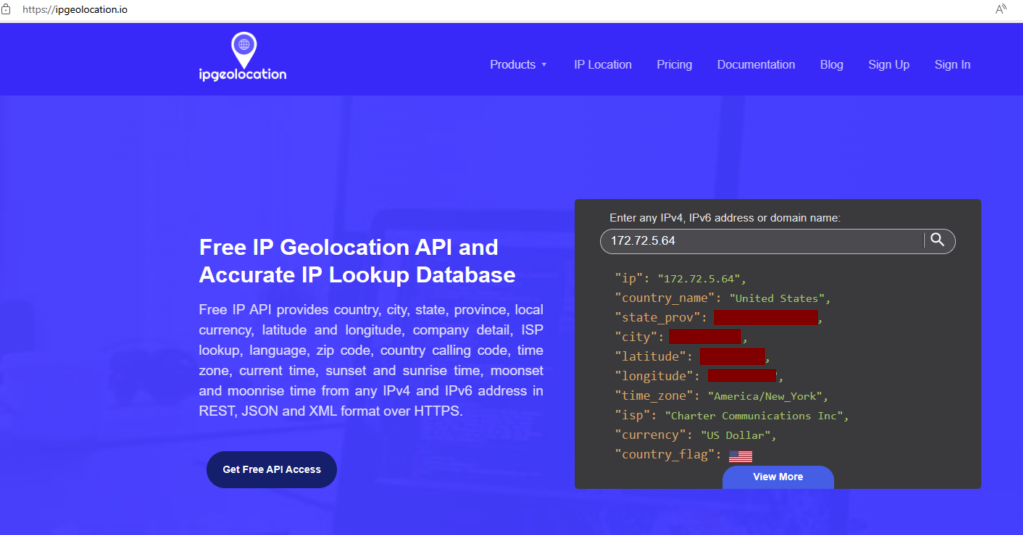
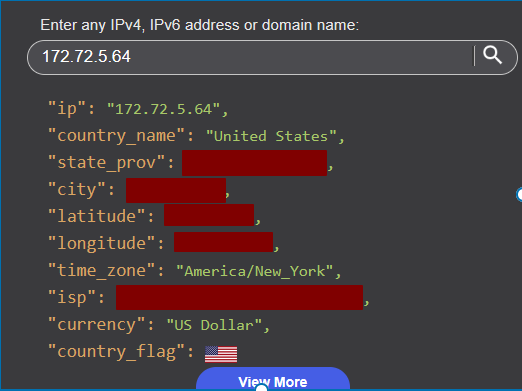
- I took the IP address from the invalid login attempt and got more information via ip geolocation api
- On my home machine, I used ping to test the connection to my VM
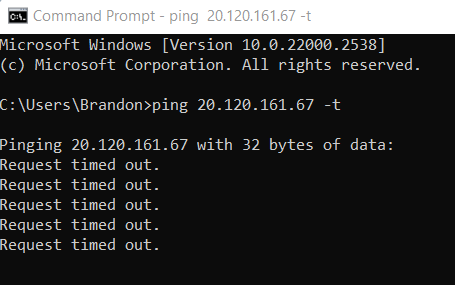
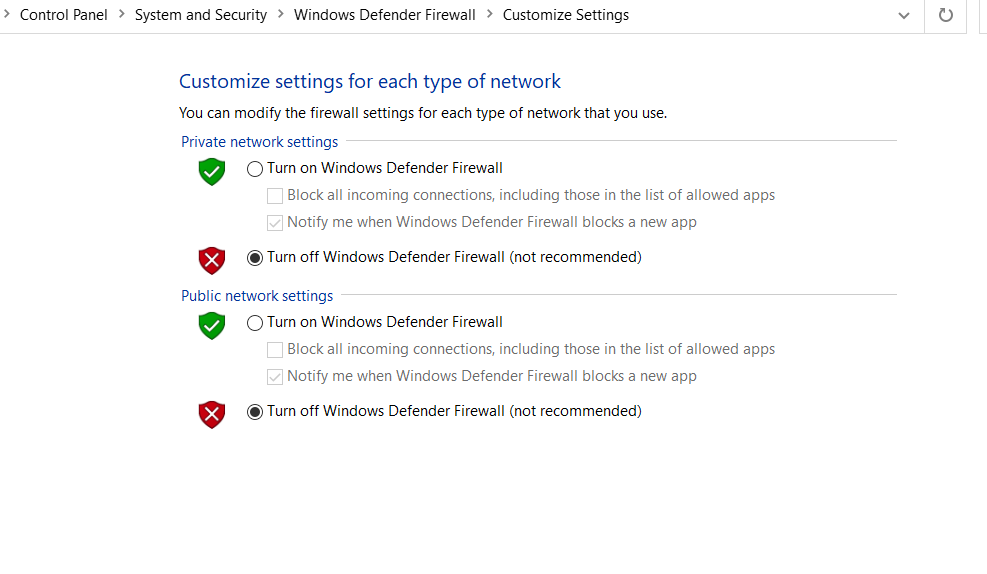
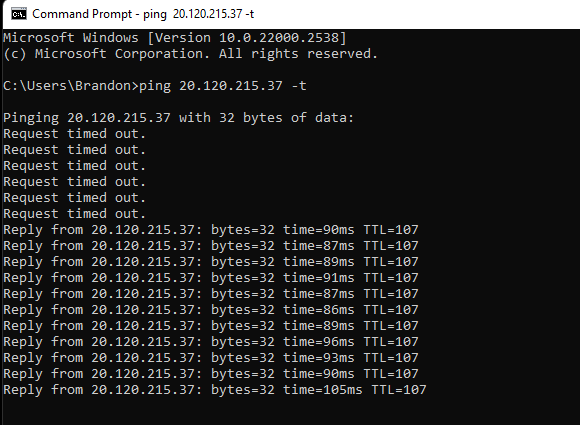
- Turned off Windows firewall – Had to update the VM to a new a new VM with the same settings and ping now works correctly.
- Next I downloaded a powershell script from Github and saved it in Powershell ISE on my VM Desktop
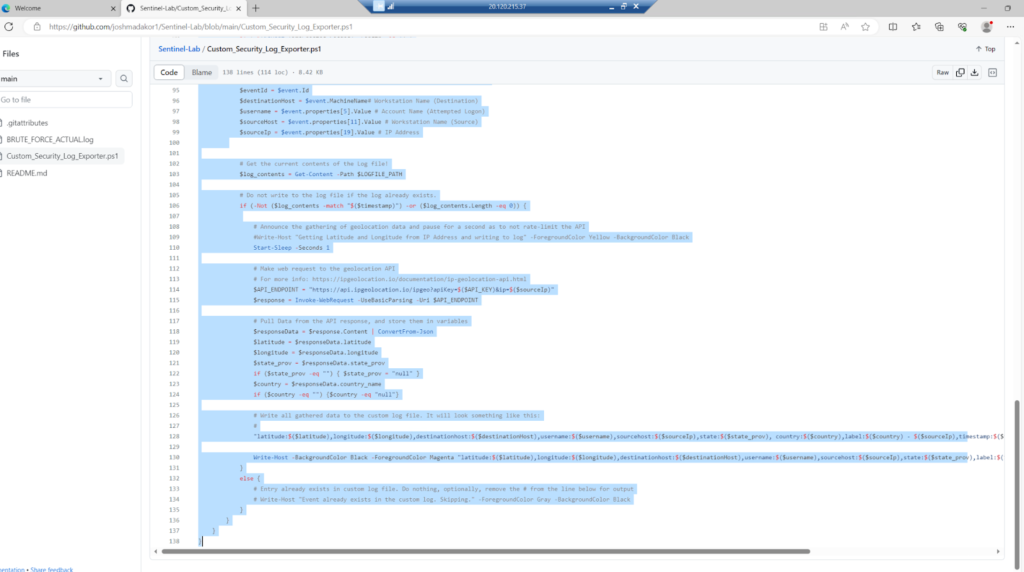
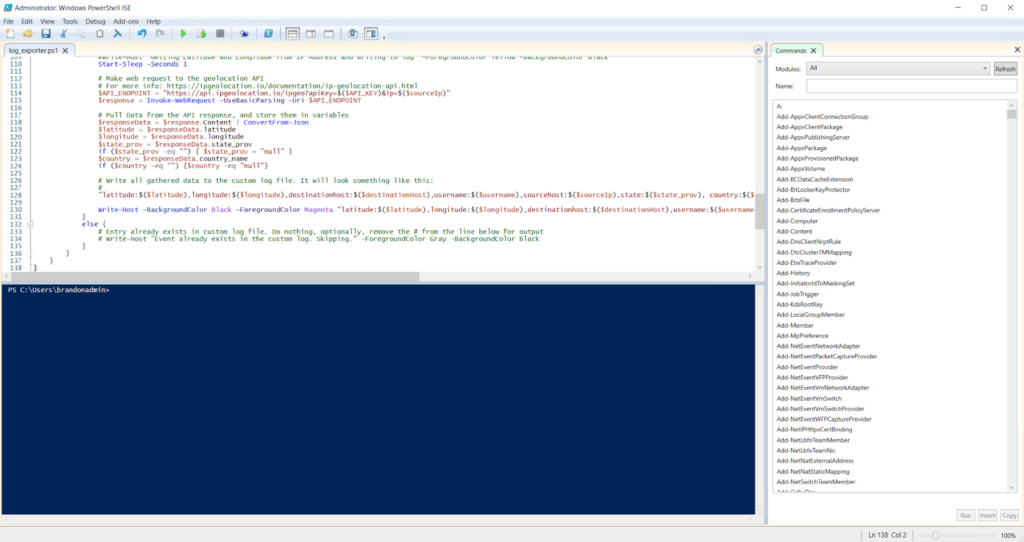
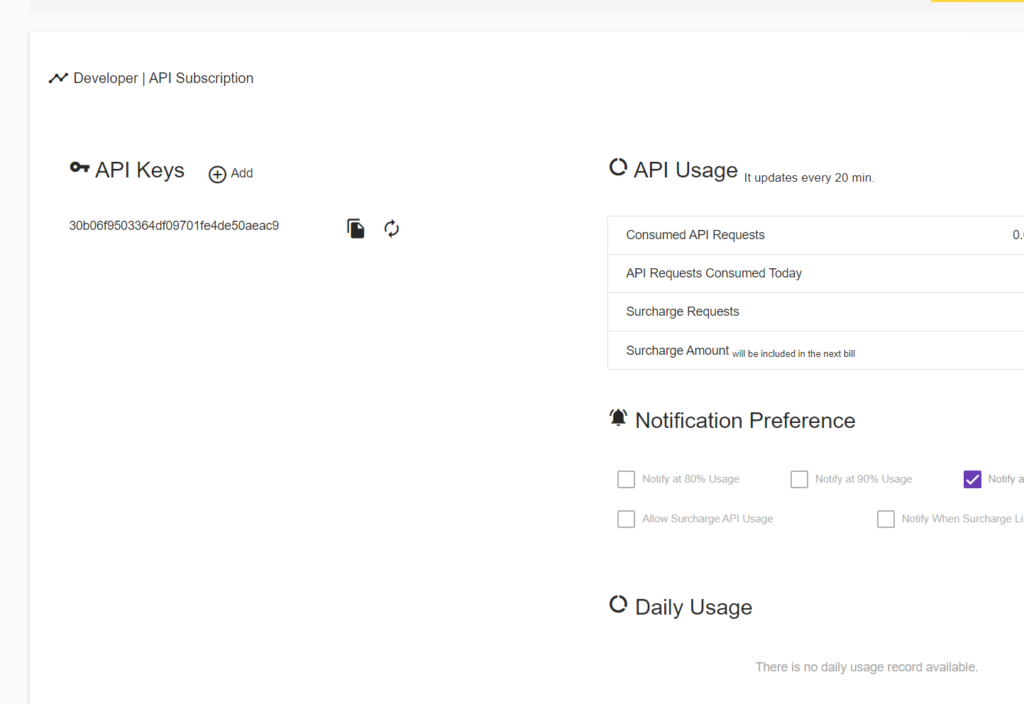
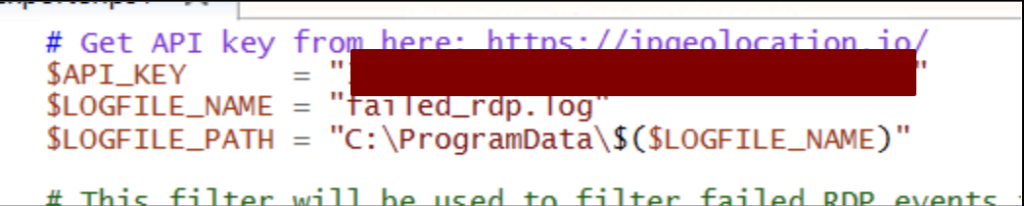
- For the script I needed an API key from geolocation.io so I signed up and receiver the key and pasted it into the powershell script.
- This script runs a loop that looks through the Event log and finds all security events where there was an invalid login. It then searches the IP address using the geolocation tool and finds the exact location of where the sign in came from.
- Ran the script and viewed the output file the script created. I can see the failed logins
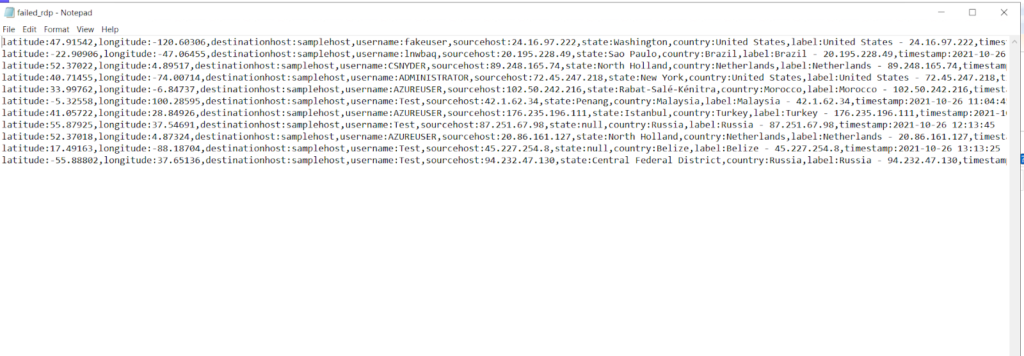
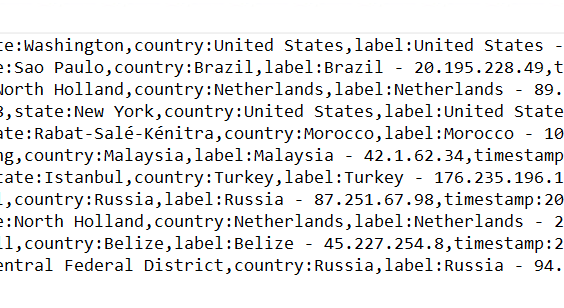
- I wanted to create a custom log analytics in Azure so I copied and pasted the log from the VM to my host machine
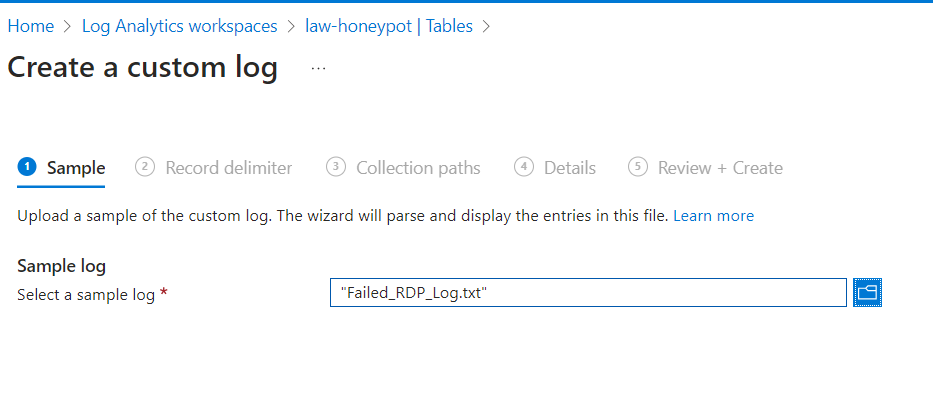
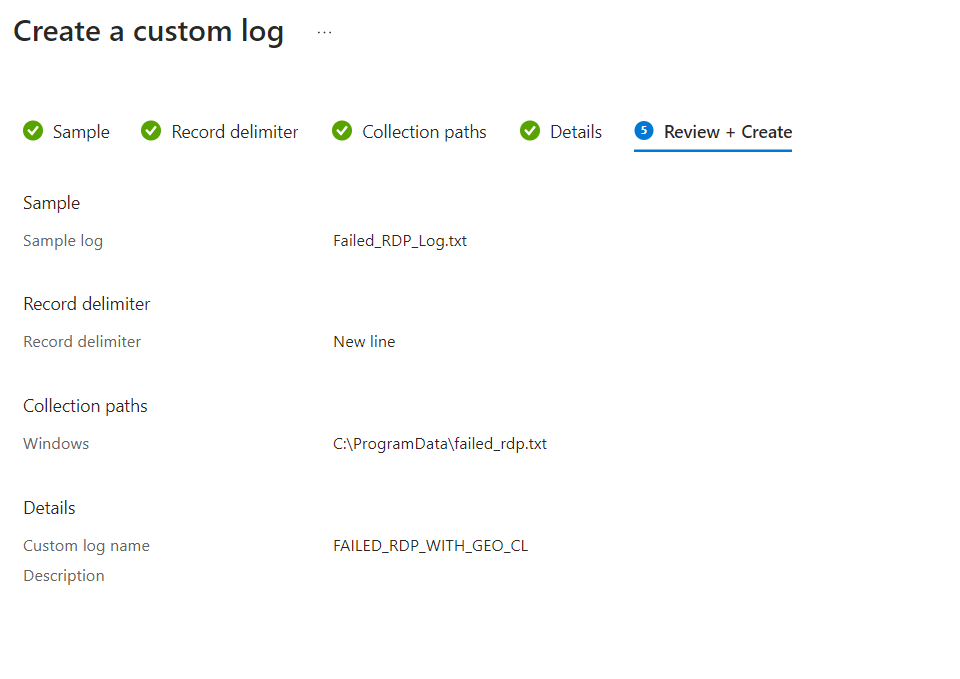
- In the logs of Azure, I used the query “SecurityEvent” to return the Windows Event logs from the VM
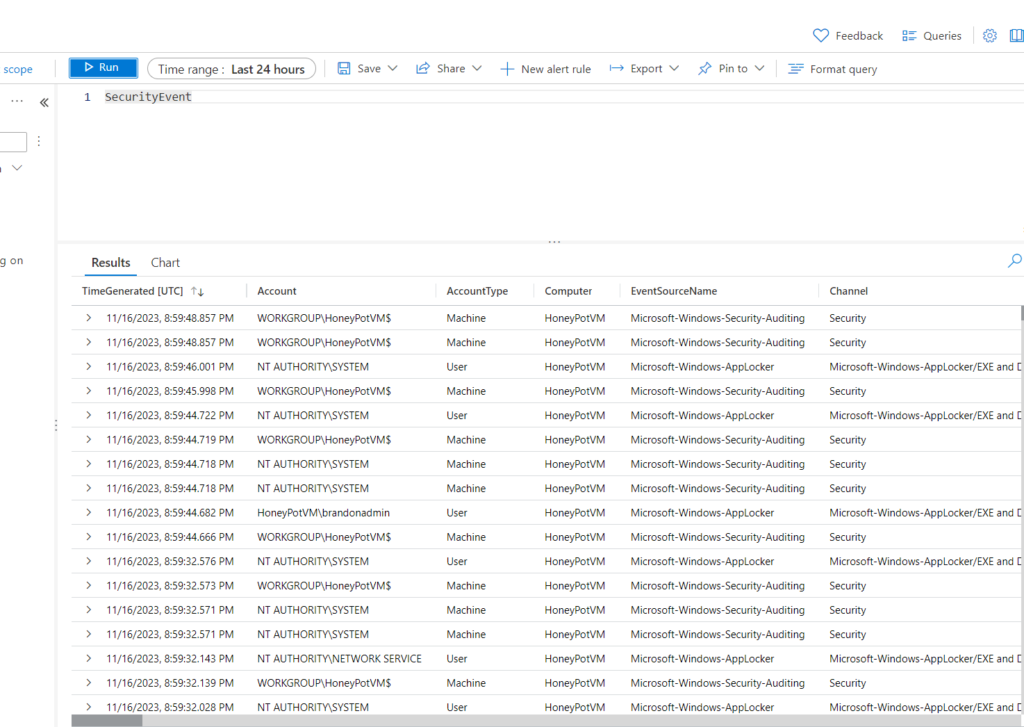
- When I run the custom query I get the log of the failed logins to the VM
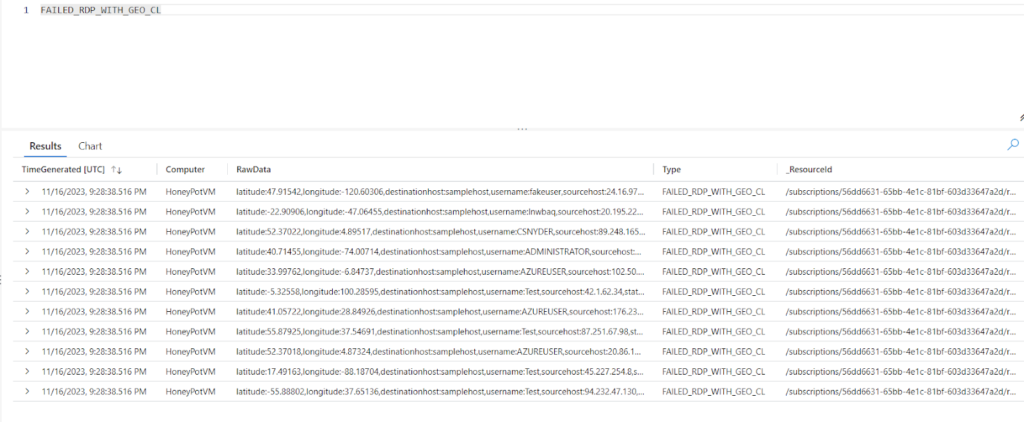
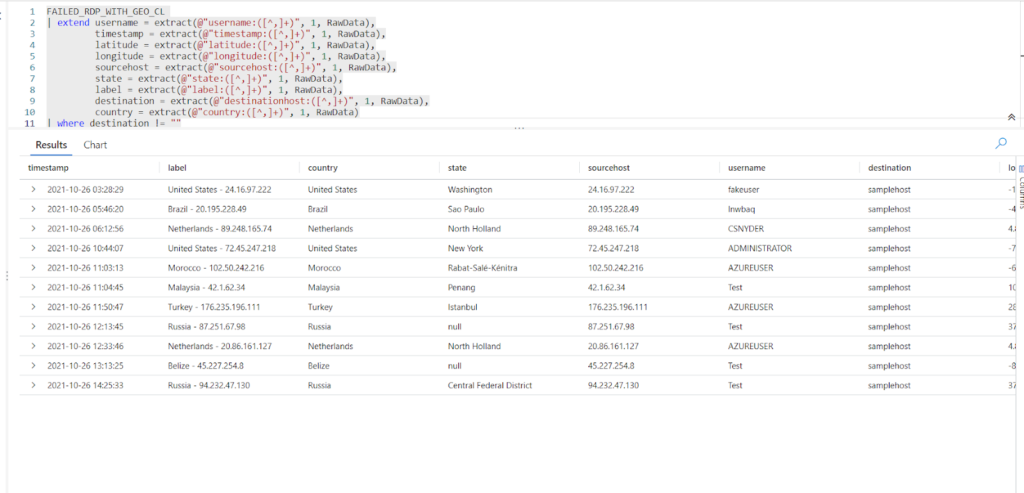
- When I run the following query it gets the log of the failed logins from the honeypot and organizes the data into their own fields
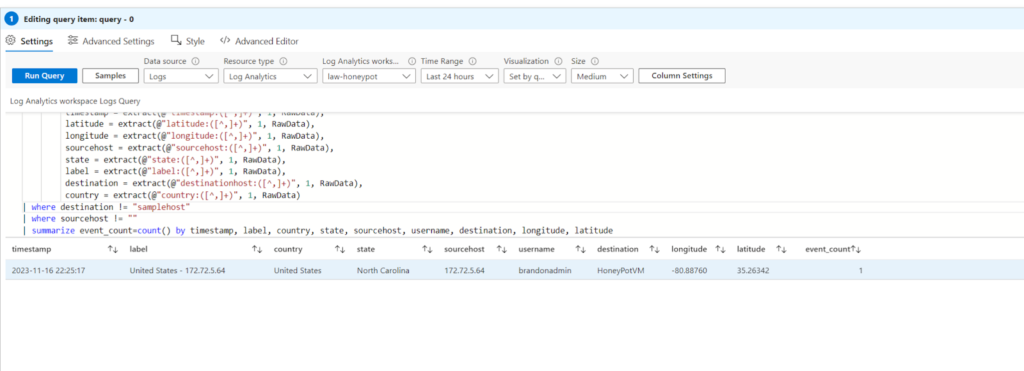
- In Sentinel, I run the same query as before
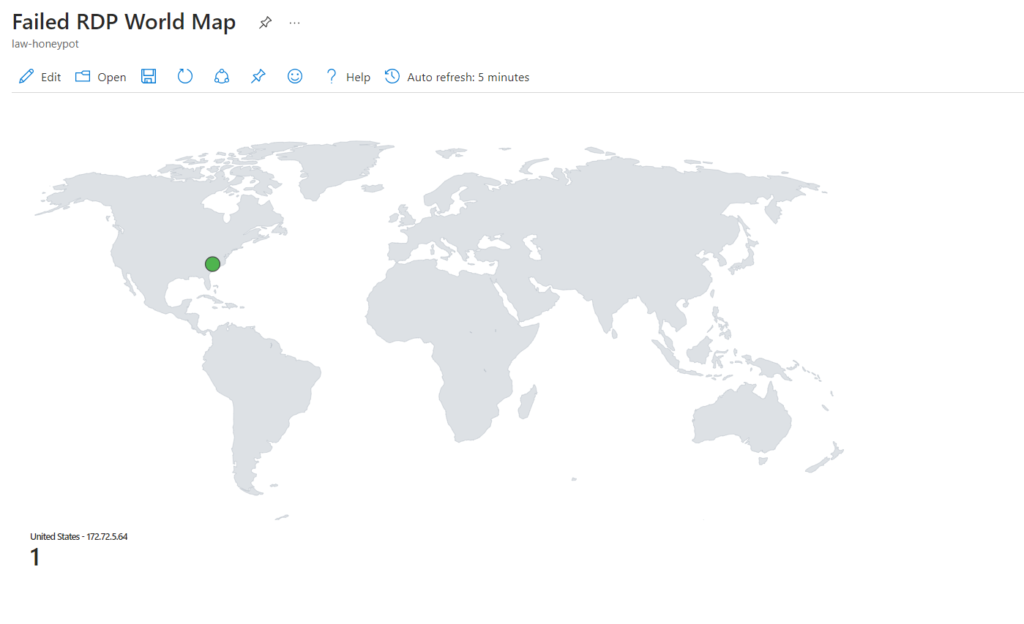
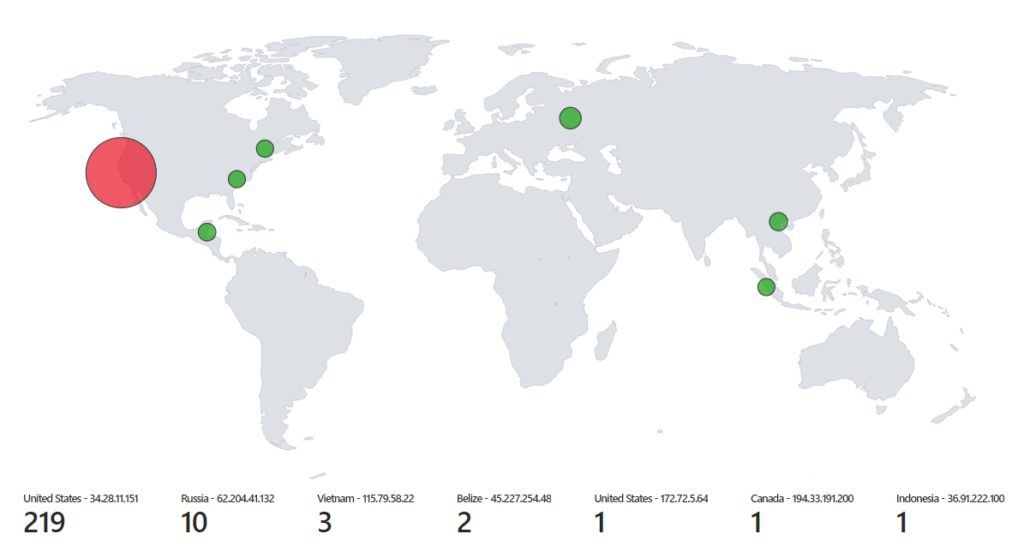
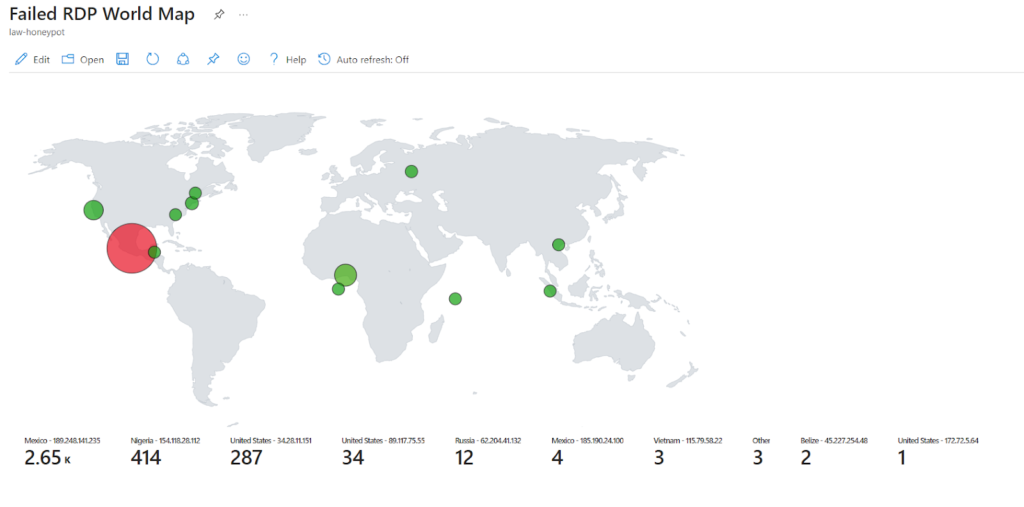
- In Sentinel, I can change the visualization to a map so I can view where the logins are coming from visually
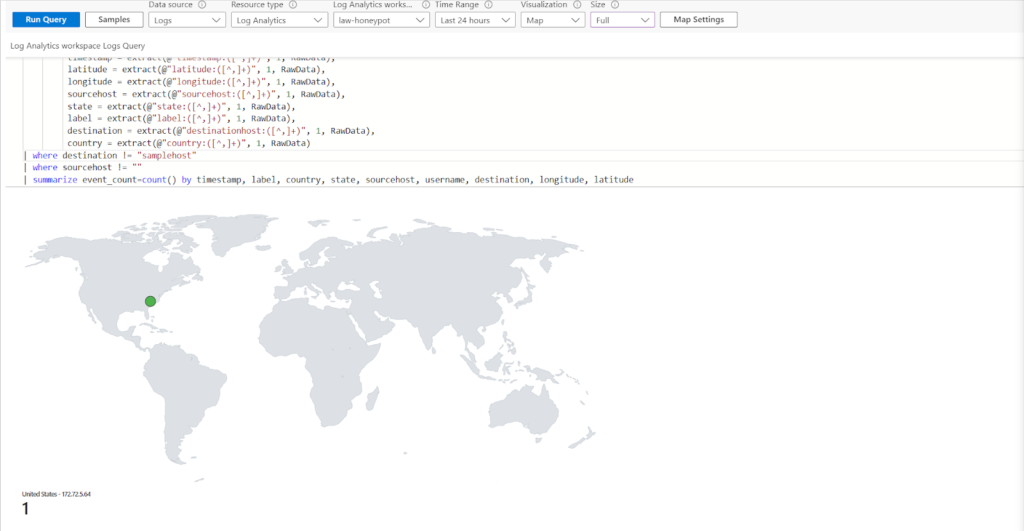
- I saved the map and will wait for more login attempts over time once the honeypot is found by attackers